
Business Settings – Customizations
Introduction
In InvoiceHela, Business Settings give you full control over how your business is presented to clients. These customizations are essential for building trust, maintaining consistency, and reinforcing your brand identity across invoices, quotations, receipts, and communications.
Business Customization Features
Edit Business Information
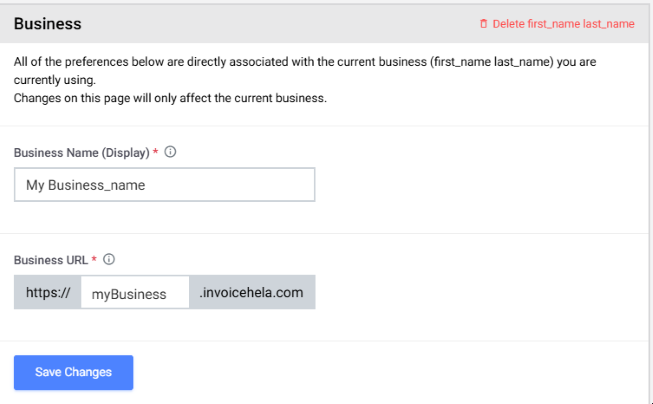
Update your business display name and contact details. This ensures that every invoice, estimate, and statement reflects your professional identity, helping clients recognize and trust your brand.
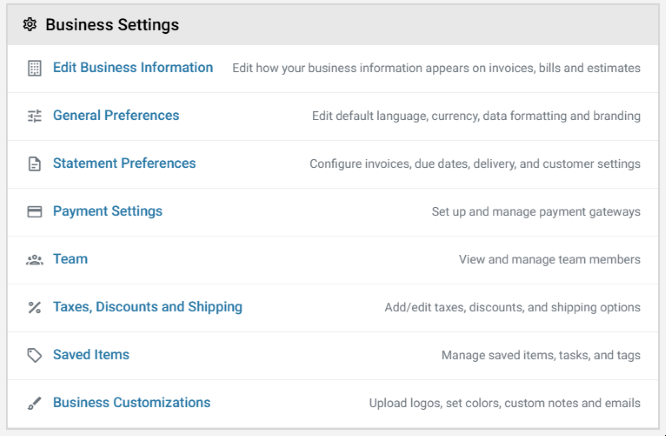
More Business settings and customizations
General Preferences
Set your default language, currency, and date formatting. These preferences make your documents clear and localized, ensuring clients receive information in a format they understand.
Statement Preferences
Configure how invoices and statements are delivered, including due dates and customer-specific settings. This helps streamline billing and ensures clients know exactly what to expect.
Payment Settings
Connect and manage payment gateways. Offering multiple payment options makes it easier for clients to pay you, improving cash flow and client satisfaction.
Team Management
Add and manage team members, assign roles, and control access. This keeps your business organized and ensures the right people have the right permissions.
Taxes, Discounts, and Shipping
Define tax rates, discount rules, and shipping options. Accurate pricing builds transparency and trust with your clients.
Saved Items
Store frequently used items, tasks, and tags. This saves time when creating invoices or estimates by letting you reuse standard entries.
Business Branding & Customizations
Upload your logo, set brand colors, and add custom notes or email templates. These elements make every client interaction feel consistent, polished, and uniquely yours. Strong branding helps your business stand out and builds long-term credibility.
✅ Save and Apply Changes
After making updates, click Save Changes. Your preferences will apply immediately to the current business profile, ensuring your brand identity is reflected across all client communications.