
Getting Your Invoice Paid in InvoiceHela
Introduction
InvoiceHela helps you get paid faster and stay organized with professional, automated invoicing. When you send an invoice, you can attach payment methods such as M-Pesa, Bank Transfer, or PayPal — making it easy for clients to pay directly and securely.
How It Works
Each invoice you send includes your selected payment options. For integrated gateways like M-Pesa STK Push, clients can pay directly from the invoice link — no manual confirmation needed.
Send Invoice: Create and send your invoice with a connected payment method (e.g., M-Pesa, PayPal, or Bank Transfer).
Client Pays: The client opens the invoice link, selects a payment method, and completes payment directly online.
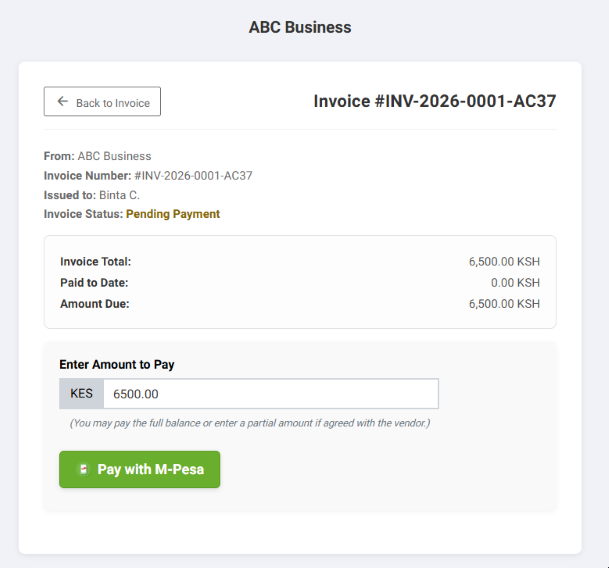
M-Pesa STK Push
Clients can initiate an M-Pesa STK Push directly from the invoice link page. A secure prompt appears on their phone to authorize payment instantly.
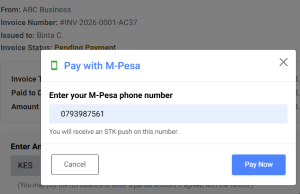
Integrated Payment Experience
When your invoice includes an integrated payment gateway like M-Pesa Express Checkout:
- Clients receive a secure payment prompt on their phone.
- Payments are processed instantly through the gateway.
- Your invoice status updates automatically to Paid.
- A payment receipt is generated and sent to both you and the client.
Partial Payments
Based on your Business Settings, you can allow clients to make partial payments on invoices. This flexibility lets customers pay part of the balance now and settle the rest later, while your records update automatically.
Manual Payment Options
If you prefer non-integrated methods such as Bank Transfer or Paybill, clients can still pay using the details provided on the invoice. You can then mark the invoice as paid manually once payment is confirmed.
Client Payment View
When clients open your invoice link (e.g., https://your_domain.invoicehela.com/invoices/...), they’ll see:
- Your business name and logo.
- Invoice number, amount due, and payment status.
- Available payment methods (M-Pesa, PayPal, etc.).
- Option to pay full or partial amounts if allowed.
✅ Automatic Updates
Once payment is made, InvoiceHela automatically updates your records — marking the invoice as Paid, updating your balance, and sending a receipt to the client. This ensures you stay organized and never miss a payment.