
Creating and Sending Quotations in InvoiceHela
Introduction
Quotations in InvoiceHela allow you to provide clients with a clear, professional estimate before confirming a sale. This guide explains how to create a new quote, add details, send it to your client, and convert accepted quotations into invoices.
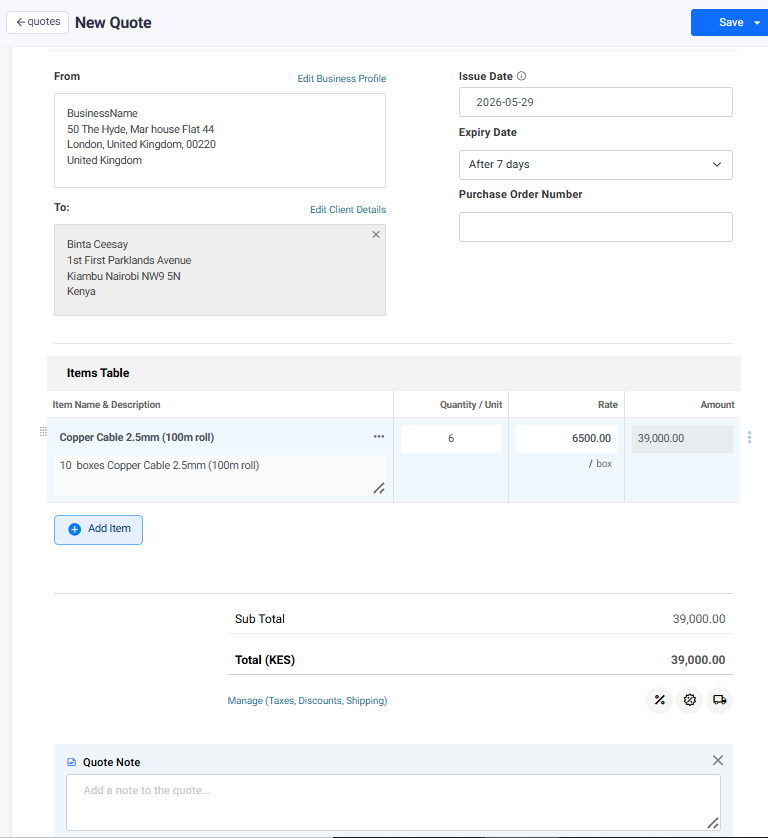
Creating a Quote
From your Dashboard, click on Quotes in the left sidebar, then select the + icon to create a new quotation.
- Quote Title & Number – Enter a title (default “Quote”) and a unique quote number.
- Issue Date & Expiry Date – Define when the quote is issued and when it expires.
- Business Information – Your business name, logo, and contact details.
- Client Information – The recipient’s name, company, and address.
- Items Table – Add products or services, including quantity, rate, and total amount.
- Currency – Select the currency for the transaction (e.g., KES, USD).
- Taxes, Discounts, Shipping – Add any applicable charges or reductions.
- Notes & Terms – Include special conditions, thank-you notes, or terms of service.
- Attachments – Upload or link supporting files if needed.
Actions Menu
Once your quotation is complete, use the action menu to decide how to proceed:
- Save Quote – Saves the quotation in your account records without sending it yet.
- Save & Send Quote – Saves and immediately sends the quotation to the client via email. The client can view, download, or accept the quote online.
- Save as Draft – Keeps the quotation in draft mode so you can edit and finalize later.
- Cancel Quote – Cancels the current quotation creation process and discards changes.
Converting Accepted Quotations
When a client accepts your quotation, you can convert it into an invoice with just one click. This keeps your workflow seamless and ensures you get paid faster.
Go to Quotations in your dashboard.
Select the accepted quotation you want to convert.
Click Convert to Invoice. The system will generate a new invoice pre-filled with the quotation details.
✅ Summary
Quotations in InvoiceHela help you present clear, professional offers to clients. With options to save, send, or draft, and the ability to convert accepted quotes into invoices, you stay organized and ready to close deals faster.