Getting Started with Invoicehela
Introduction
Getting started with InvoiceHela is quick and straightforward. This guide walks you through the onboarding process step by step, so you can set up your account and business in minutes.
Step 1: Sign Up
From our homepage, click the Get Started button or go directly to https://invoicehela.com/signup.
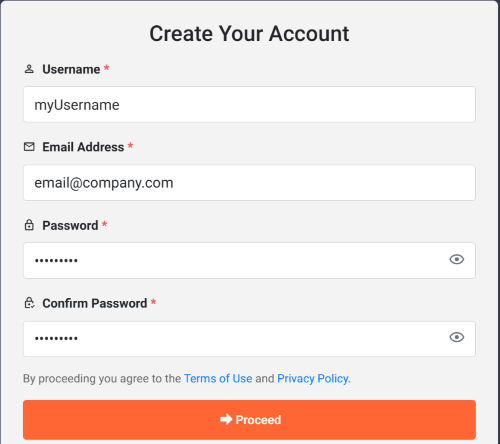
On the signup form, you’ll need to provide:
- Username – choose a preferred name for your account.
- Email Address – this is your primary communication channel. All notifications and invoices will be sent here.
- Password – set a secure password with letters, numbers, and symbols.
Once complete, click the Proceed button to continue.
Step 2: Account Details
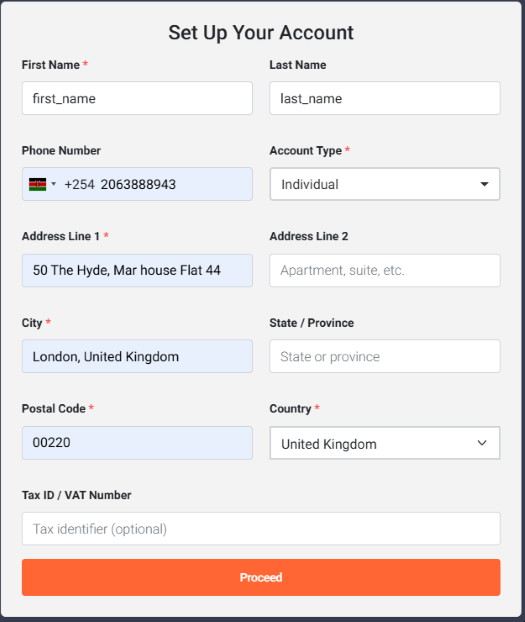
Next, you’ll provide your personal and contact information:
- First Name & Last Name – enter your personal details.
- Phone Number – select your country code and add your contact number.
- Account Type – specify whether this account is for an individual or an organization.
This ensures your account is properly linked to your identity and communication preferences.
Step 3: Set Up Your Business
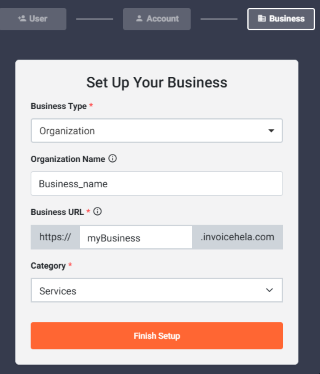
Finally, configure your business profile:
- Choose Business Type – Organization or Individual.
- Enter Organization Name – used across all invoices and client communications.
- Set Your Business URL – e.g.,
https://myBiz.invoicehela.com. This is your custom subdomain for invoices and client portal access. - Select a Business Category – choose from options like Retail, Services, Finance, Technology, etc.
- Click Finish Setup to complete onboarding.
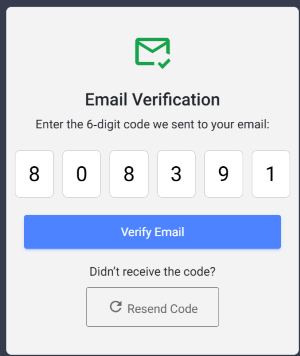
Step 4: Verify Your Email
After completing your business setup, you’ll receive a verification email at your registered address. Open the email and click the Verify Email link to confirm your account.
This step is essential to activate your account and ensure secure communication.
✅ Success – Proceed to Dashboard
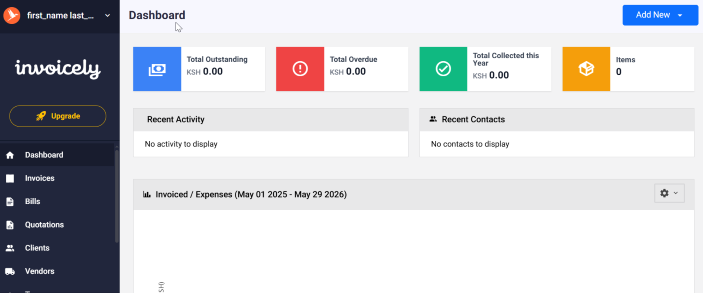
Once your email is verified, you’ll be redirected to your Dashboard. From here you can:
- Create invoices and estimates.
- Manage clients and payments.
- Access your personalized business portal.